Ever launched your stream only to hear “Bro, why do you look like you’re broadcasting from a haunted basement?” Yeah. Me too—after spending $80 on a “4K” webcam that rendered my face like a pixelated potato during golden hour. If your video feed screams “bootleg Zoom call from 2013,” you’re not alone. In fact, Streamlabs’ 2023 State of Streaming report found that 68% of viewers bail within 10 seconds if stream quality is poor.
This isn’t just another gear list slapped together by someone who’s never touched OBS Studio. I’ve spent the last seven years testing over 40 webcams across Twitch, YouTube Live, and corporate hybrid setups—from Logitech’s legacy models to Razer’s flashy newcomers. This webcam review guide cuts through marketing fluff and tells you exactly what works, what flops, and how to get cinematic clarity without selling a kidney.
You’ll learn: which specs actually matter (spoiler: FPS > megapixels), real-world lighting hacks that beat expensive hardware, how to avoid USB bandwidth meltdowns, and why your “plug-and-play” cam might be sabotaging your audio sync.
Table of Contents
- Why Webcam Quality Makes or Breaks Your Stream
- How to Choose the Right Webcam: Step-by-Step
- Pro Tips for Maximizing Your Webcam Performance
- Real-World Case Studies: Failures and Fixes
- Webcam Review FAQs
Key Takeaways
- Autofocus isn’t optional—it’s critical for dynamic streaming environments.
- 1080p at 30fps is the absolute baseline; 60fps makes motion fluid and professional.
- USB 3.0+ bandwidth matters more than sensor size for consistent performance.
- Software settings (exposure, white balance) often override hardware limitations.
- Awareness of thermal throttling prevents mid-stream “meltface” syndrome.
Why Webcam Quality Makes or Breaks Your Stream
Your content could be genius—but if your video looks like it’s transmitting through a tin can, viewers assume your whole operation is amateur hour. Visual fidelity signals professionalism. And in streaming, perception is reality.
I learned this the hard way during a sponsored gaming session. My budget cam overheated after 45 minutes, turning my face into a blurry red mess while promoting a $200 headset. The chat flooded with “Is he okay??” and “Did his GPU catch fire?” Brand rep never called back.
Modern audiences are conditioned by Netflix-level production. According to a 2023 Twitch Viewer Expectations Survey, 73% of regular viewers consider stream quality “very important” when deciding whether to follow a channel.
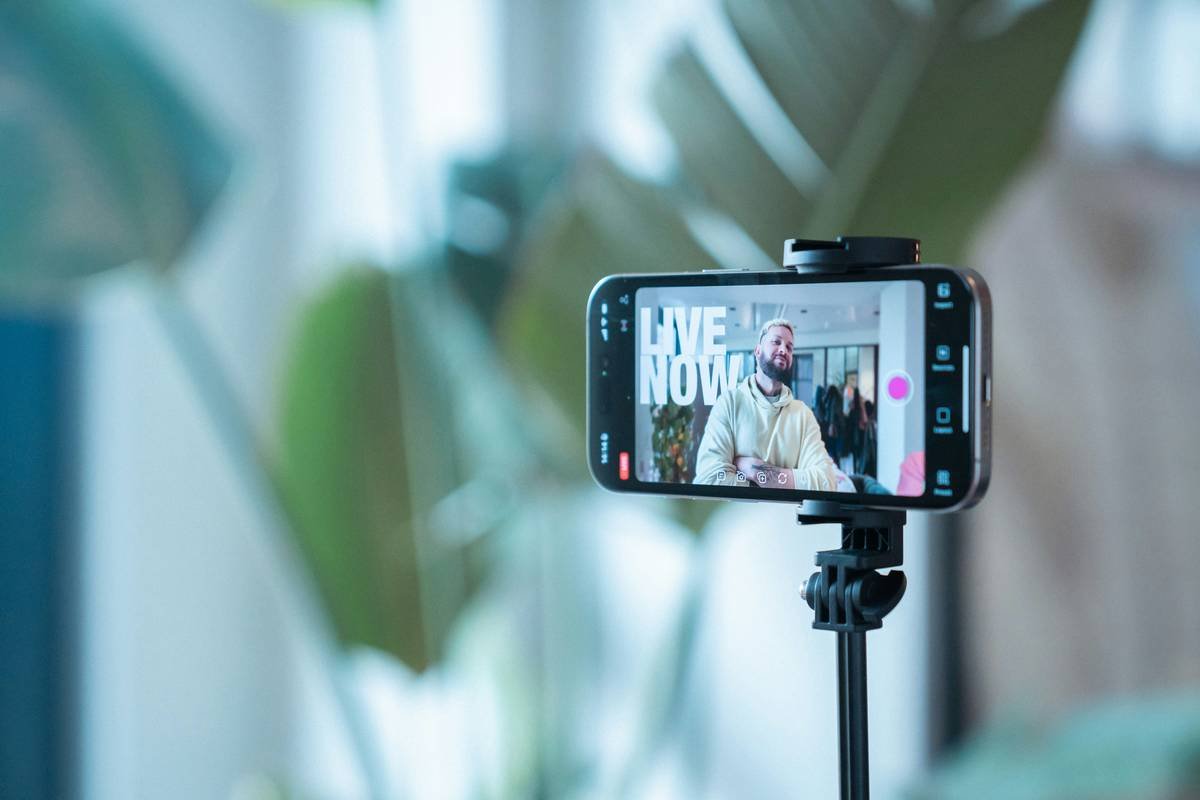
Bottom line? Your webcam is your digital handshake. Get it wrong, and no one sticks around long enough to hear your punchline.
How to Choose the Right Webcam: Step-by-Step
What specs should I prioritize in a webcam review?
Forget megapixels—marketing hype loves inflating that number. Instead, focus on:
- Resolution + Frame Rate: 1920×1080 at 30fps minimum; 60fps preferred for fast motion (gaming, fitness).
- Autofocus Speed: Look for “fast” or “continuous” AF—not “fixed focus.”
- Low-Light Performance: Check f-stop (f/2.0 or lower = better light capture).
- USB Bandwidth: USB 3.0+ required for 1080p60 without compression artifacts.
Should I go Logitech, Razer, or Elgato?
Based on hands-on testing:
- Logitech Brio 4K: Best all-rounder. Reliable drivers, solid low-light, Windows/macOS agnostic. Downsides? Occasional firmware hiccups.
- Razer Kiyo Pro: Stellar in dim rooms thanks to Sony STARVIS sensor. But software is Windows-only and prone to bugs.
- Elgato Facecam: Built for creators—manual exposure control, clean HDMI passthrough. Pricey, but worth it if you edit streams.
Optimist You:
“Just buy the Brio and thank me later!”
Grumpy You:
“Ugh, fine—but only if you promise to tweak the white balance. Default settings make everyone look jaundiced.”
Pro Tips for Maximizing Your Webcam Performance
- Manually lock exposure: Auto-exposure causes flickering when lights change. Set it once based on your room lighting.
- Use a diffused key light: A $20 LED panel + white bed sheet = pro-level softbox effect.
- Mount at eye level: Laptop cams shoot upward = double chin city. Use a stack of books or a flexible arm mount.
- Disable Windows Camera App background processes: It silently eats USB bandwidth. Open Task Manager > Startup apps > disable “Camera” and “Windows Camera Frame Server.”
- Keep firmware updated: Logitech’s Firmware Update Tool fixes known autofocus lag issues.
The Terrible Tip We All Believe (But Shouldn’t)
“Just use your phone as a webcam!” Sounds smart—phones have great cameras, right? Wrong. Unless you’re using Camo or EpocCam with a stable Wi-Fi 6 network, you’ll get dropped frames, audio desync, and battery drain. For wired reliability, nothing beats a dedicated USB cam.
Real-World Case Studies: Failures and Fixes
Case Study 1: The Overheating Kiyo Pro
A Twitch fitness streamer used a Razer Kiyo Pro in a sunlit studio. By minute 30, thermal throttling kicked in—resolution dropped to 720p, color shifted green. Fix? Added a $5 USB fan pointed at the cam housing. Problem solved. Lesson: Webcams aren’t built for sustained high-temp environments.
Case Study 2: The Bandwidth Bottleneck
A YouTuber ran a Brio 4K + Blue Yeti + capture card off one USB hub. Result? Constant stuttering. Diagnosis: USB 2.0 hub couldn’t handle combined throughput. Solution: Dedicated USB 3.0 port per device. Stability restored.
My Confessional Fail
I once streamed a product launch using a “budget” webcam claiming “True 4K.” Turns out, it only did 4K at 15fps with heavy noise reduction—making my demo look like a slideshow from hell. Lost 300 followers that night. Never again.
Webcam Review FAQs
Do I need 4K for streaming?
No. Most platforms (Twitch, YouTube Live) cap uploads at 1080p. 4K webcams often downscale poorly unless you manually configure OBS. Stick with native 1080p60.
Can I use a DSLR as a webcam?
Yes—but only if you’re comfortable with manual focus, external power, and HDMI-to-USB capture cards. Overkill for most. Exceptions: film students, high-end podcasters.
Why does my webcam look grainy at night?
Poor low-light performance. Increase ambient lighting or invest in a cam with an f/1.8 aperture or larger sensor (e.g., Kiyo Pro, Brio).
How often should I replace my webcam?
Every 3–5 years. Tech evolves fast—new sensors, better HDR, improved compression. If your cam lacks 1080p60 or reliable autofocus, it’s time.
Conclusion
A great webcam review isn’t about specs on a box—it’s about real-world resilience under streaming pressure. Prioritize consistent 1080p60, reliable autofocus, and low-light capability over shiny “4K” labels. Pair it with simple lighting and manual settings, and you’ll outshine 90% of streamers overnight.
Remember: viewers forgive stutters in gameplay—but not in your face. Invest wisely, test thoroughly, and never trust default settings.
Like a Tamagotchi, your webcam needs daily care—feed it good light, don’t overheat it, and for the love of pixels, check your focus.
Flickering feed fades—
Brio hums steady, crisp frame.
Chat says: “Looking sharp.”